Phone App
Race Recorder turns an Android phone into an unattended race camera: it watches the scene, automatically saves a clip whenever something moves through frame, and uploads those clips in the background. Point it, hit record, and leave it running.
Getting started
Installing the app on a new phone.
- On the phone, open clips.zone4.ca/recorder.apk to download the app.
- Open the downloaded file. Android will ask to allow installs from your browser — approve it, then tap Install. (You may see an "unverified developer" warning; that's expected for a sideloaded app.)
- Launch Race Recorder and grant Camera, Microphone, and Precise location when prompted — the app needs all three to record and tag clips. (If it sends you to a new screen to enable location, tap Allow all the time.)
- Mount or prop the phone so the camera has a clear view of the course, ideally on power for long sessions.
1. The preview/aim screen
What you see when you open the app — a live camera preview with the controls overlaid. Use this screen to frame the shot before you hit record.
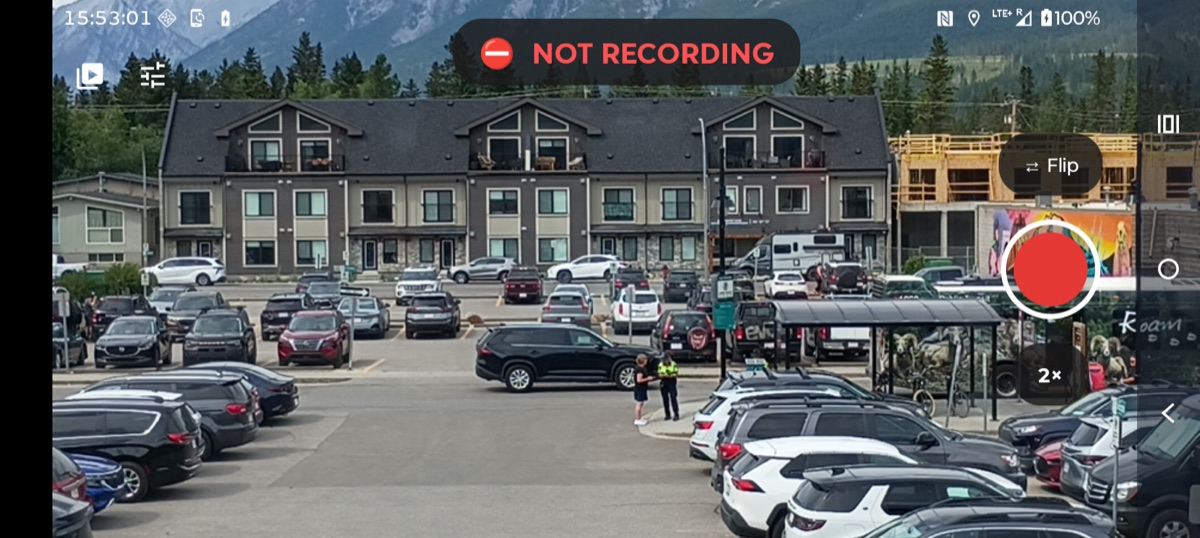
- NOT RECORDING — the badge at the top tells you the app is idle. It is not saving or uploading anything yet.
- Record button (large red circle, right) — tap to start monitoring. Tap again later to stop.
- Flip — switch between the front and rear cameras.
- 2× — cycle the zoom level.
2. Recording & monitoring
After you hit record, the phone goes into a monitoring mode: it saves a clip whenever the detector sees motion, and uploads those clips in the background. You can lock the phone and walk away — it keeps recording and uploading on its own.
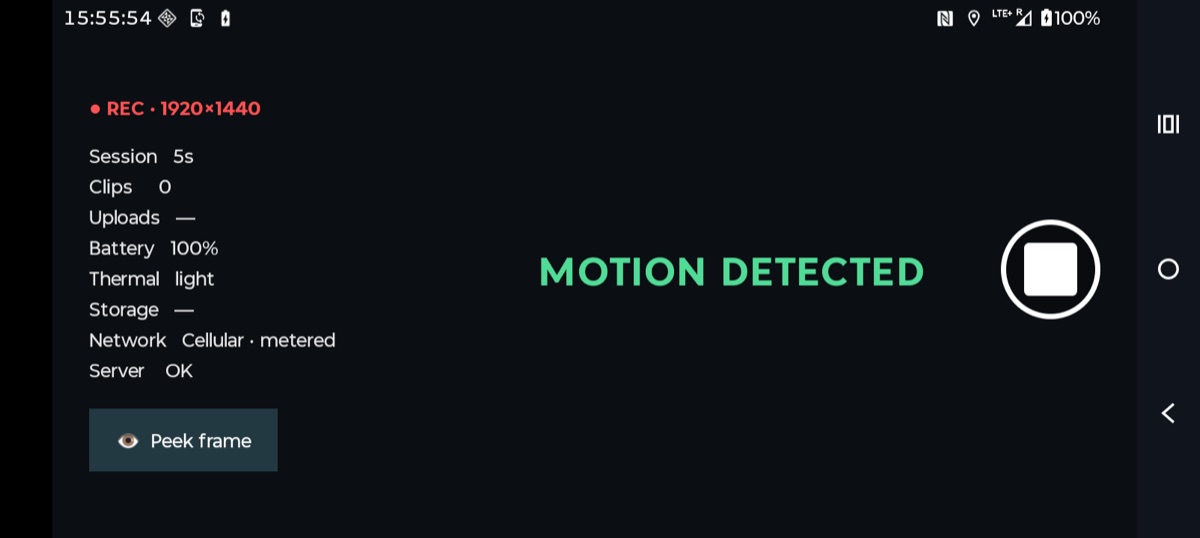
The panel on the left is your at-a-glance health check:
- ● REC · 1920×1440 — recording is active, at the shown capture resolution.
- Session / Clips — how long this run has been going and how many clips it has saved so far.
- Uploads / Network / Server — upload backlog, the connection in use (e.g. Cellular · metered), and whether the server is reachable.
- Battery / Thermal / Storage — the phone's vitals, so you can spot a phone that's overheating or running low before it stops.
- MOTION DETECTED — flashes green when the detector fires and a clip is being saved — a quick confirmation the app is seeing the action.
- Peek frame — briefly shows the live camera so you can re-check framing without leaving monitoring mode.
- Stop button (white square, right) — ends the recording session and returns to the preview screen.